

How to register for Land Charges searches with the new online portal
You can now register for the new Land Charges search portal. We’ve provided a step by step guide below with images of what to expect.
Please note – searches received by email prior to go live will be processed by the Land Charges team -please do not resubmit the same request again through the new portal.
Step 1: Go to the registration page. It will look like this:
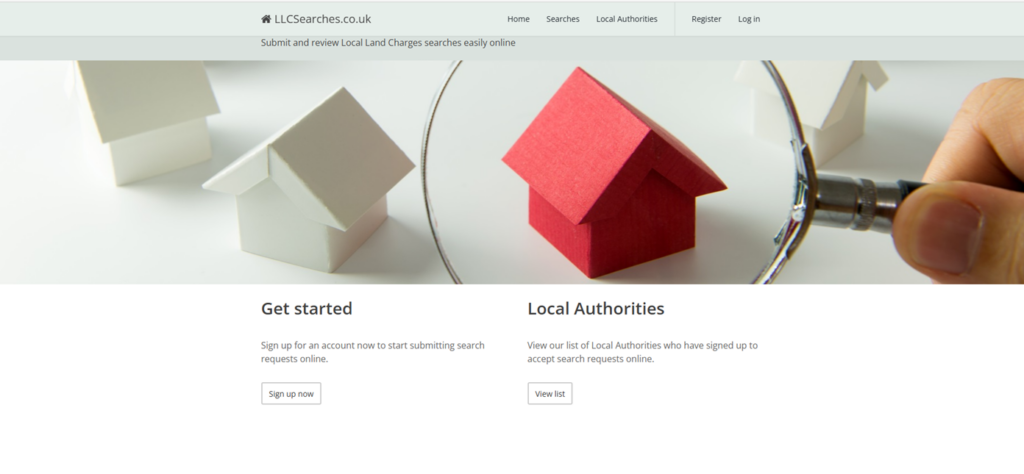
Step 2: Select “sign up now”. This will take you to the following page:
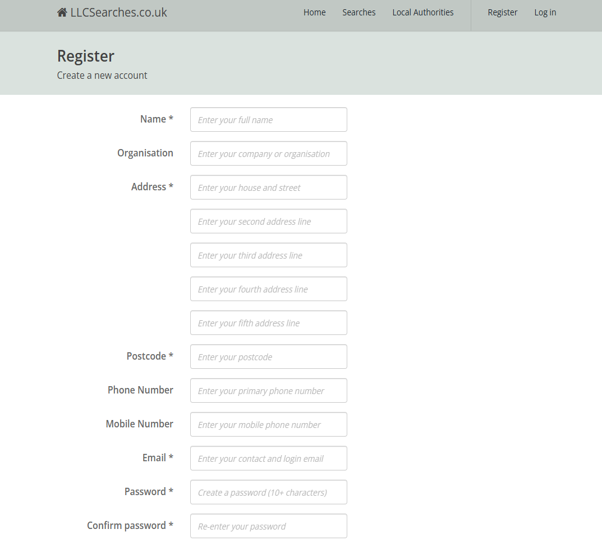
You are required to complete the fields marked with an asterisk. Please note that your password must be at least 10 characters and include at least 1 upper case, 1 lower case, one numeric and 1 special character. Select the “Register” box at the bottom of the page.
Step 3: You will then receive the an email from noreply@llcsearches.co.uk that will say:
—————————————————————————————————
Please confirm your LLCSearches.co.uk account
From: noreply@llcsearches.co.uk
Name
Please confirm your LLCSearches.co.uk account registration.
Thank you for registering with LLCSearches.co.uk. Please click here to confirm your email address and enable your account. If you did not create an account, please ignore this email.
—————————————————————————————————
Step 4: By selecting the “click here” prompt you will be directed to the following page:
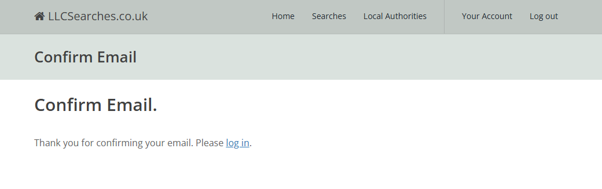
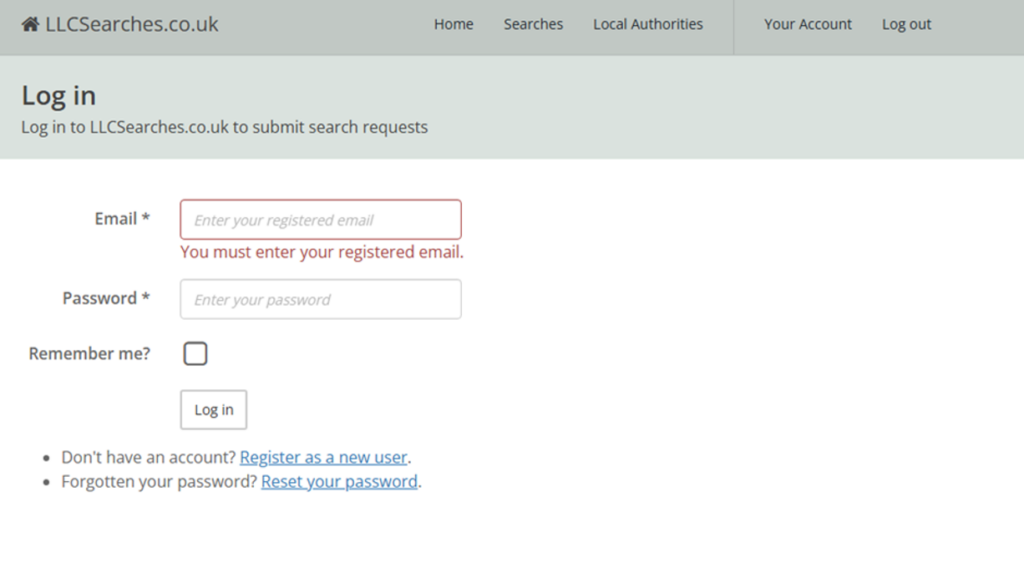
Step 5: Once you have confirmed your email, follow the log in prompt displayed on this screen. This will take you to the log in screen:
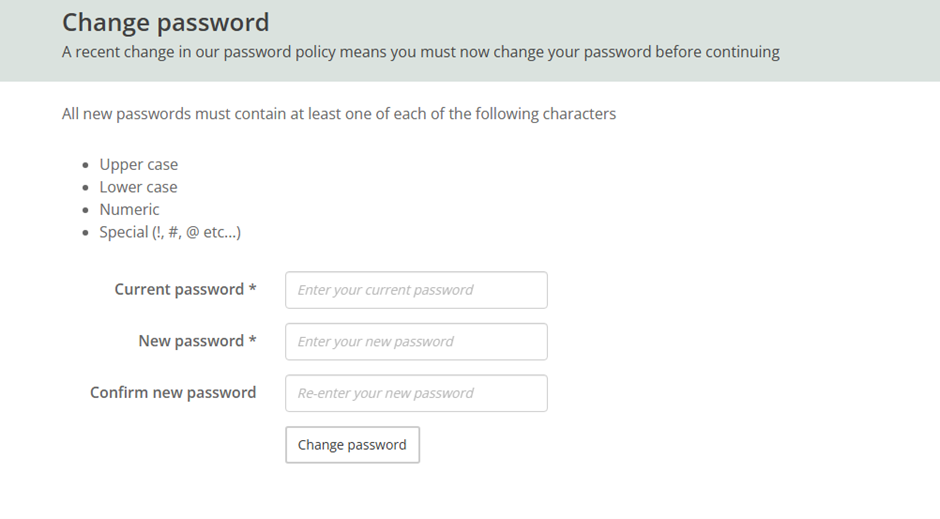
Step 6: You will then be prompted to change your password:
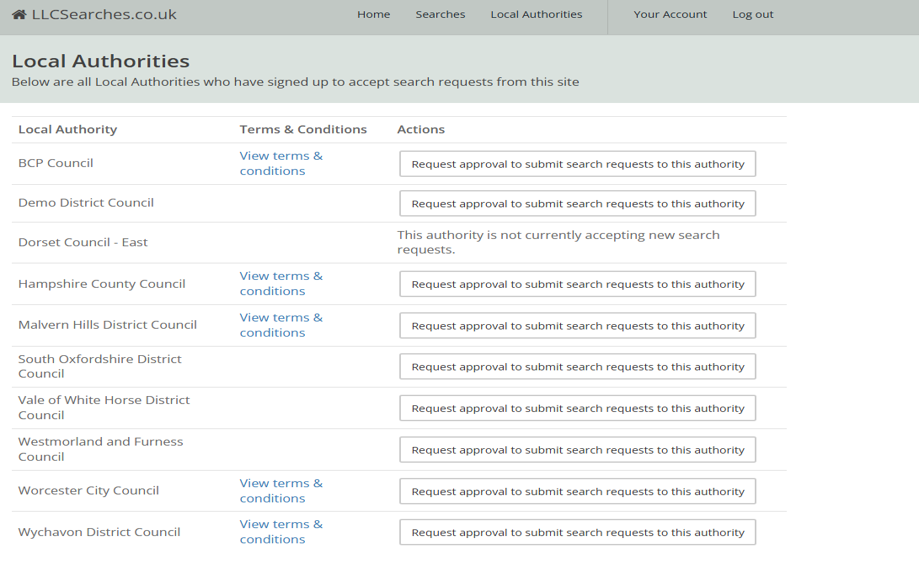
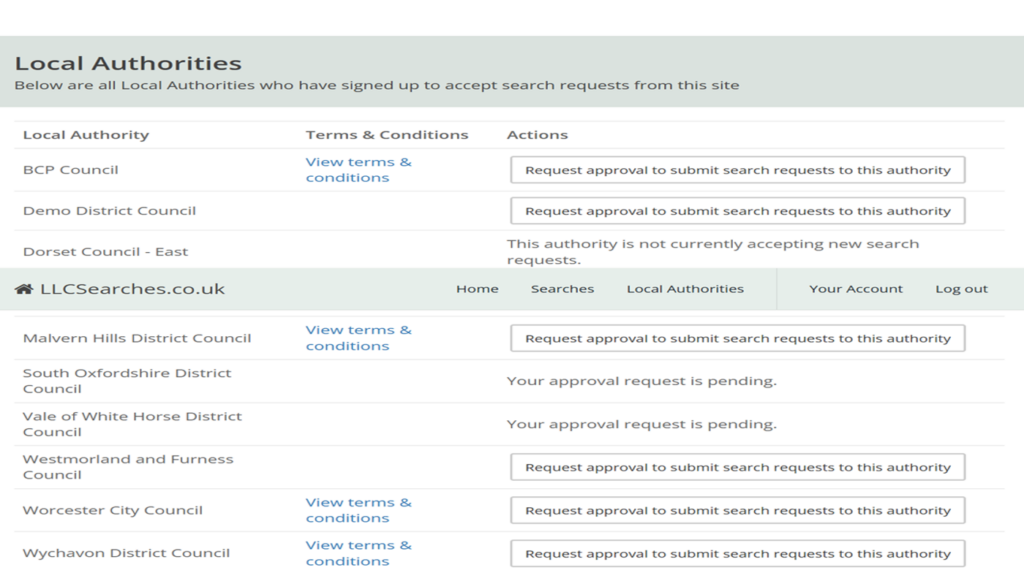
Step 7: Once you have logged in to the system, you are then able to choose which Local Authorities have signed up to receive searches from this site:
Step 8: Select the Local Authority you need. This will take you to the following screen to confirm your request.
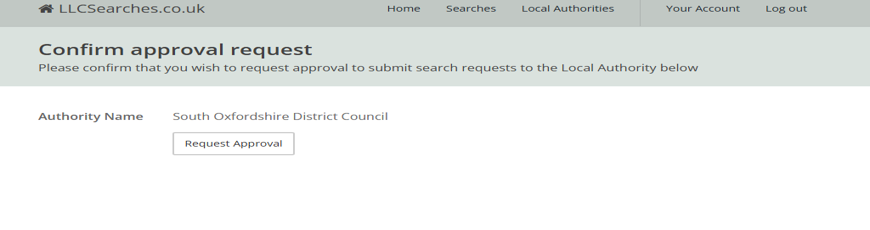
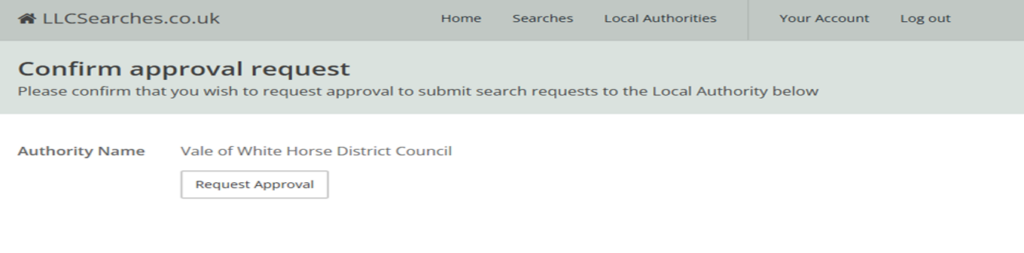
Step 9: Select the Request Approval Button.
Return to the Local Authorities list and the Actions list for the local authority you have chosen will show the status of “Your approval request is pending”.
Step 10: Once your account has been authorised, you will receive a confirmation email:



